

Adding a Passkey to your Duo Account
IMPORTANT: It is highly recommended to add a passkey to your Georgetown Duo account. A passkey is a modern replacement for passwords that lets you log in to websites and apps using your device’s biometric authentication (like Face ID, Touch ID) or a device PIN. You must first have set up Duo and installed the Duo Mobile app before you can add a device.
If you are a supplier requesting assistance with a supplier portal password reset or multifactor authentication, please contact suppliercare@georgetown.edu.
Instructions for an Apple Computer
(Note: Screens may vary depending on your individual Duo and system setups)
- To add a passkey to your Duo account, go to the Duo Device Setup page and authenticate to Duo using your primary method to get to the next section.
- Select Add a device.
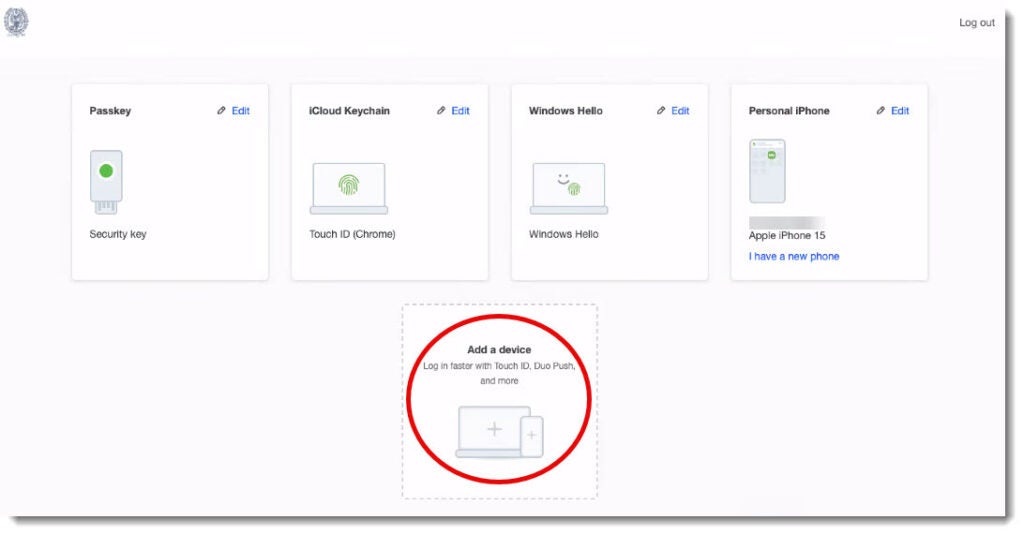
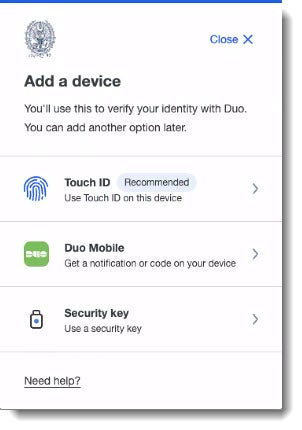
- On an Apple computer, select Touch ID. Follow the prompts to set up your fingerprint reader.
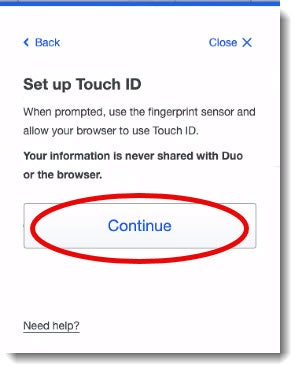
- Set up Touch ID. Click on Continue.
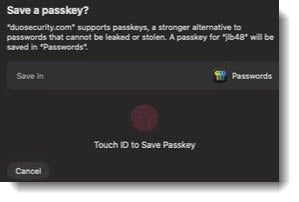
- Touch the ID area to save the passkey. The prompt will say ” Done ” when it is complete. This screen may vary depending on your individual system setup.
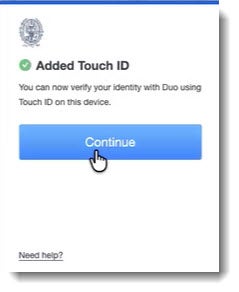
- Finally, you will see that Touch ID has been added. Click on Continue.
Instructions for a Windows Computer:
(Note: Screens may vary depending on your individual Duo and system setups)
- To add a passkey to your Duo account, go to the Duo Device Setup page and authenticate using your primary method to get to the next section.
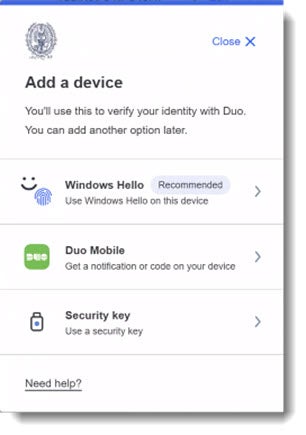
- Select Add a device
- Select Windows Hello.
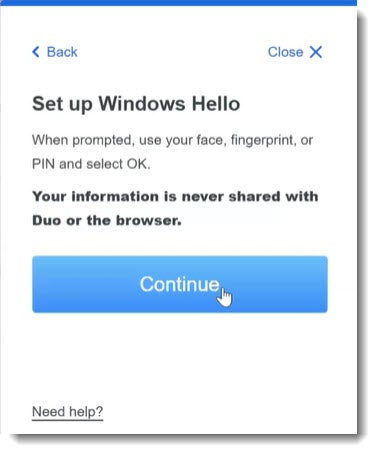
- Click Continue when prompted to set up Windows Hello.
- You will be prompted to verify your identity with your passcode. This screen may vary depending on your individual system setup.
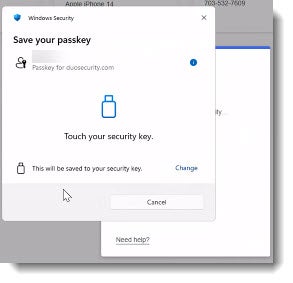
- Finally, save your passkey information. Your device has been added