

Adding Touch ID to Your Duo Account
You can then use Touch ID to authenticate to GU online applications such as GU Google Apps, Canvas, and GMS.
Perform the following steps if you haven’t previously set up Touch ID on your computer (or if you want to add another fingerprint). Note: Make sure your browser is up to date. Screens may vary depending on your individual Duo and system setups.
- To add a Touch ID to your Duo account, go to the Duo Device Setup page and authenticate to Duo using your primary method to get to the next section.
- Select Add a device.
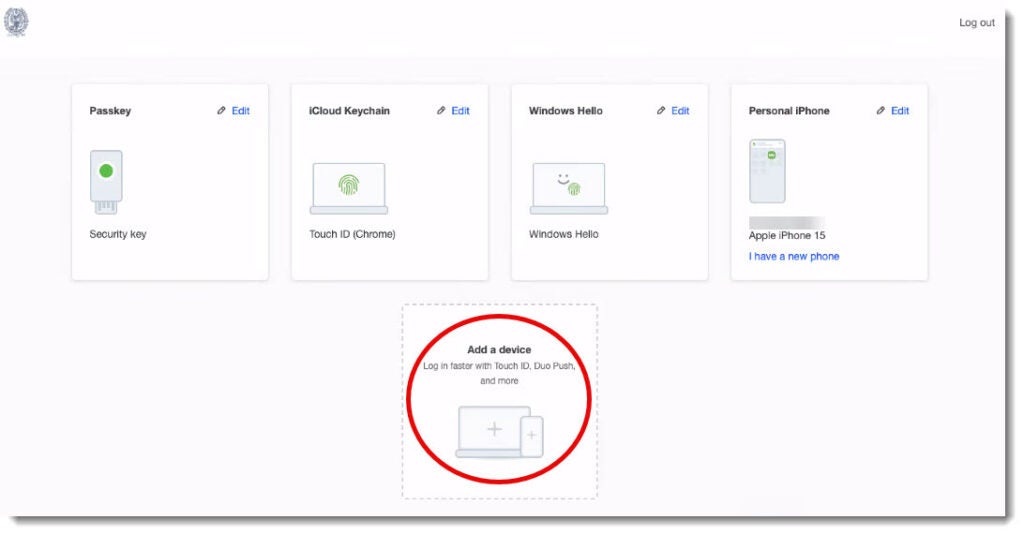
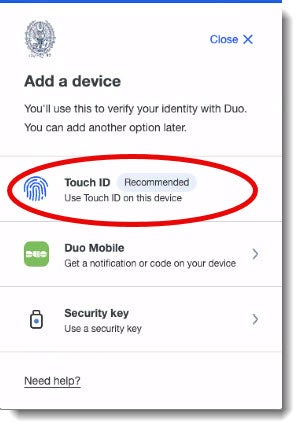
- Select Touch ID.
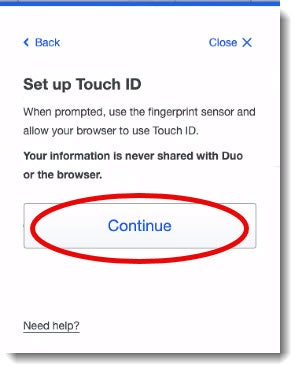
- Click on Continue.
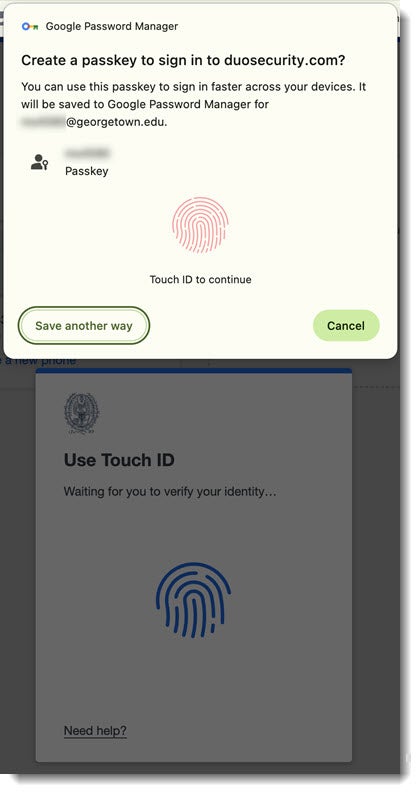
- Touch the ID area to save the passkey. The prompt will say ” Done ” when it is complete. This screen may vary depending on your individual system setup.
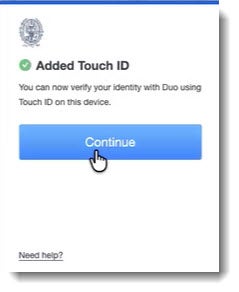
- Finally, you will see that Touch ID has been added. Click on Continue.
- In the upper right-hand corner, you will see a message that your passkey has been saved.

You can now use Touch ID to log in to GU online applications.