

Setting Up Georgetown Google Apps on Your iPhone
- Open Settings.
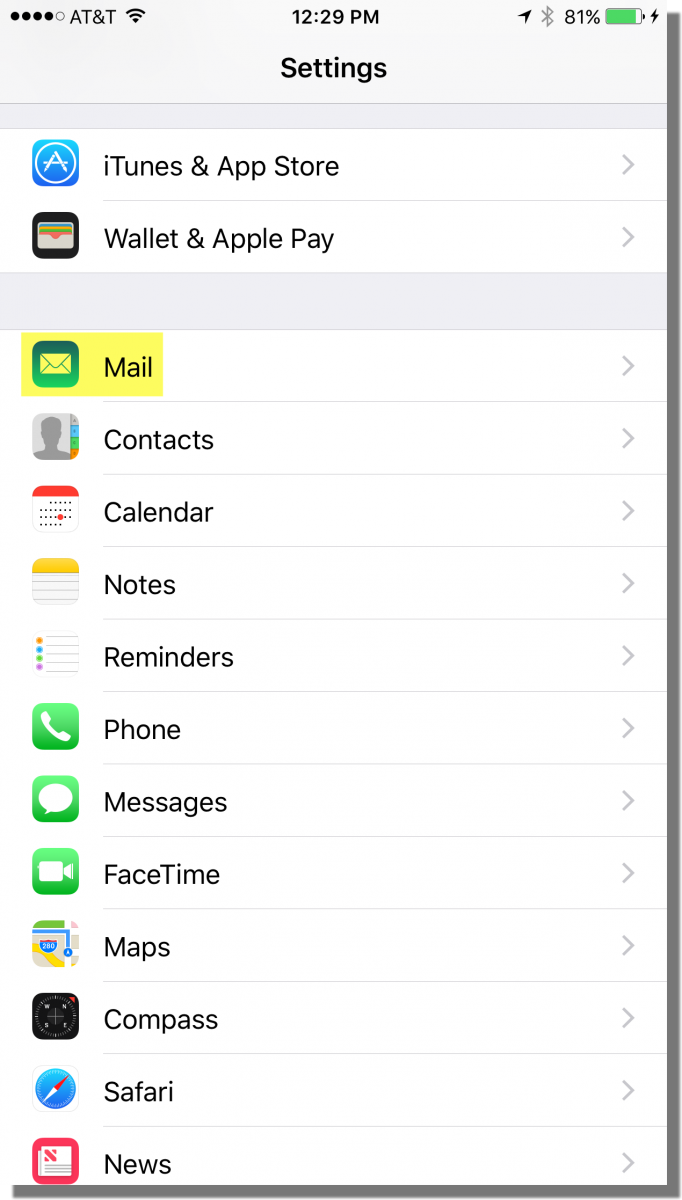
- Tap Mail.
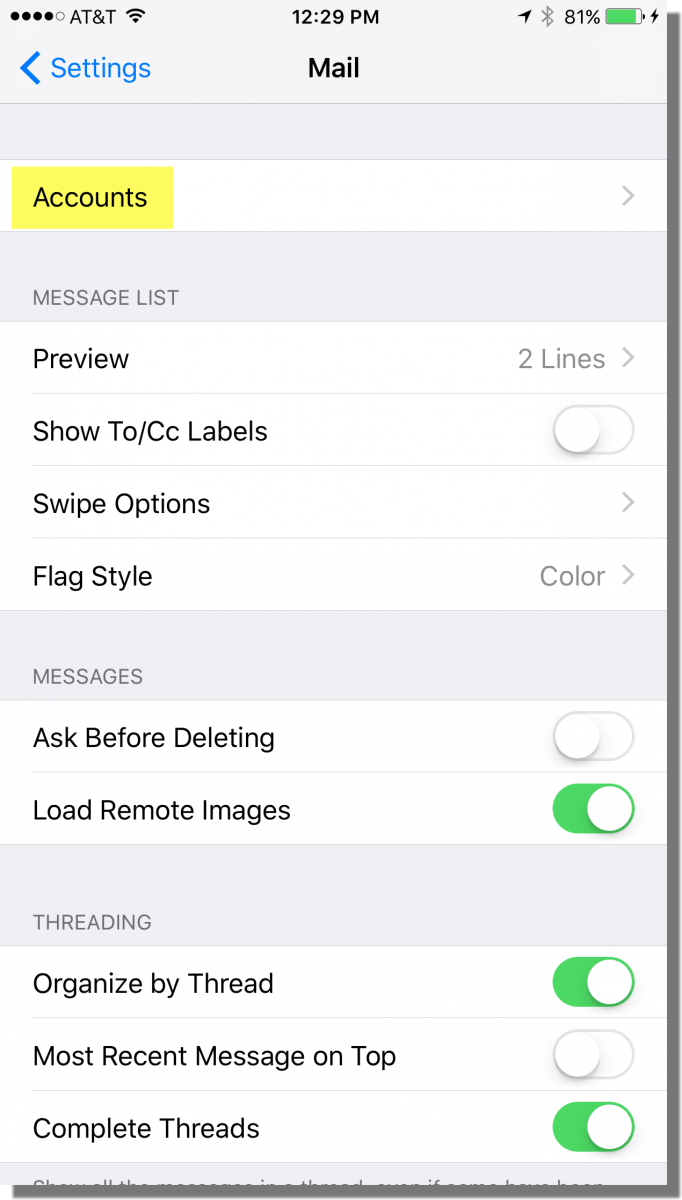
- Tap Accounts.
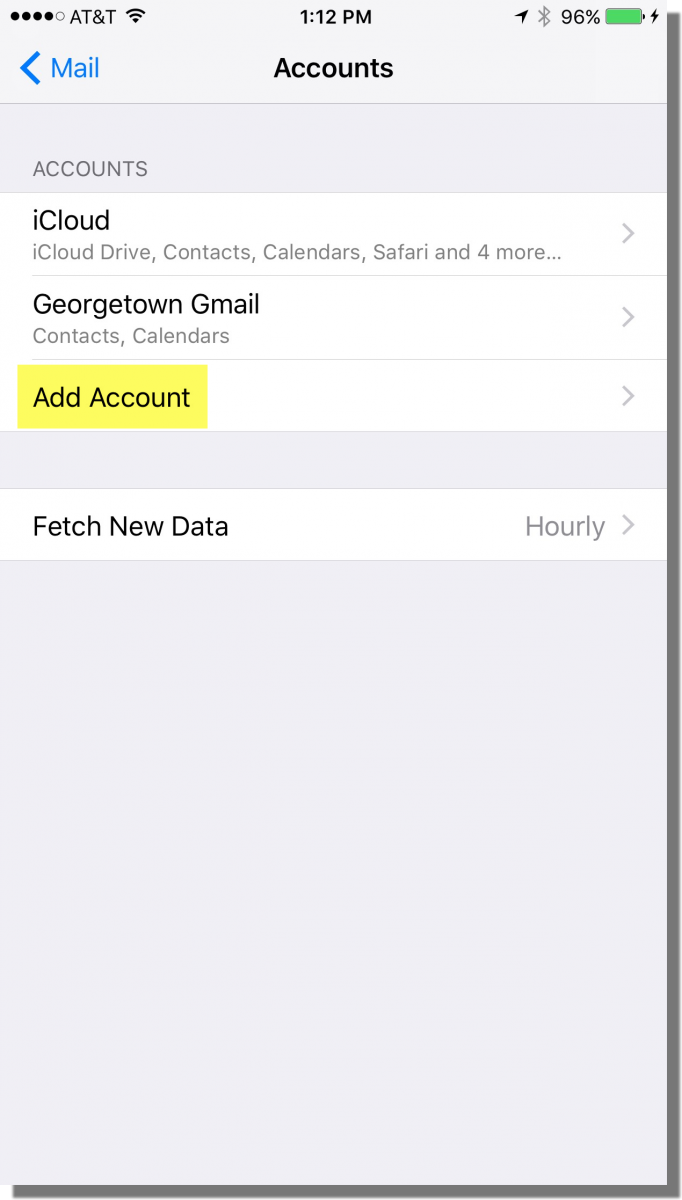
- Tap Add Account.
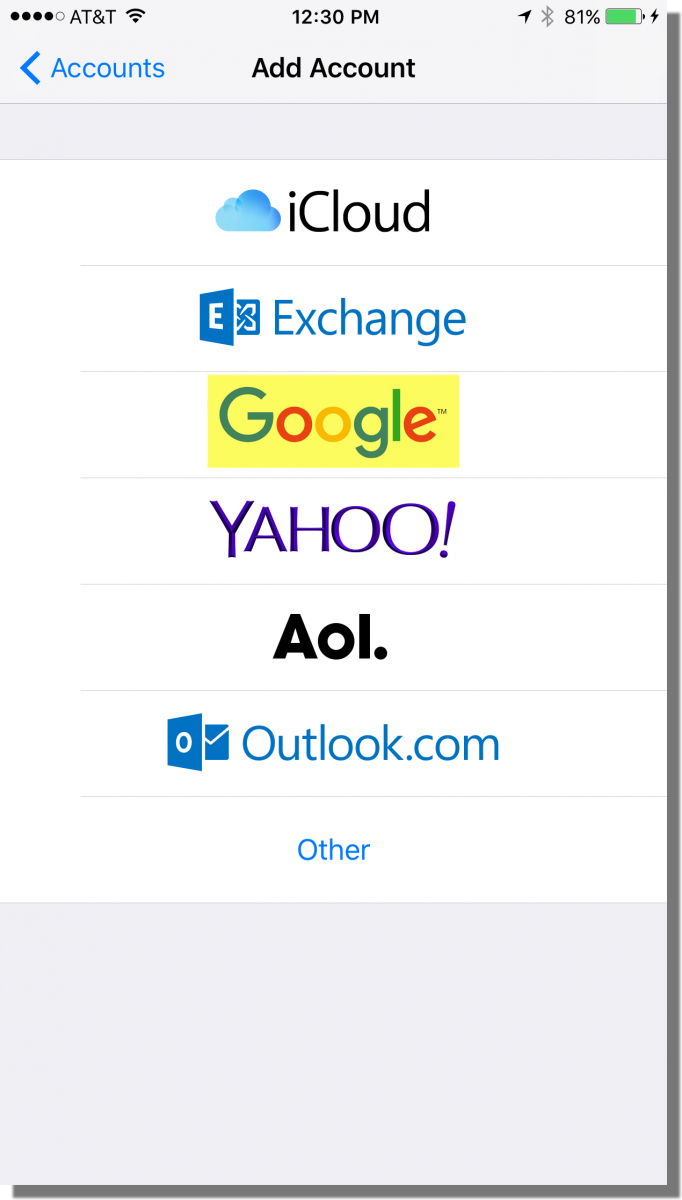
- Tap Google.
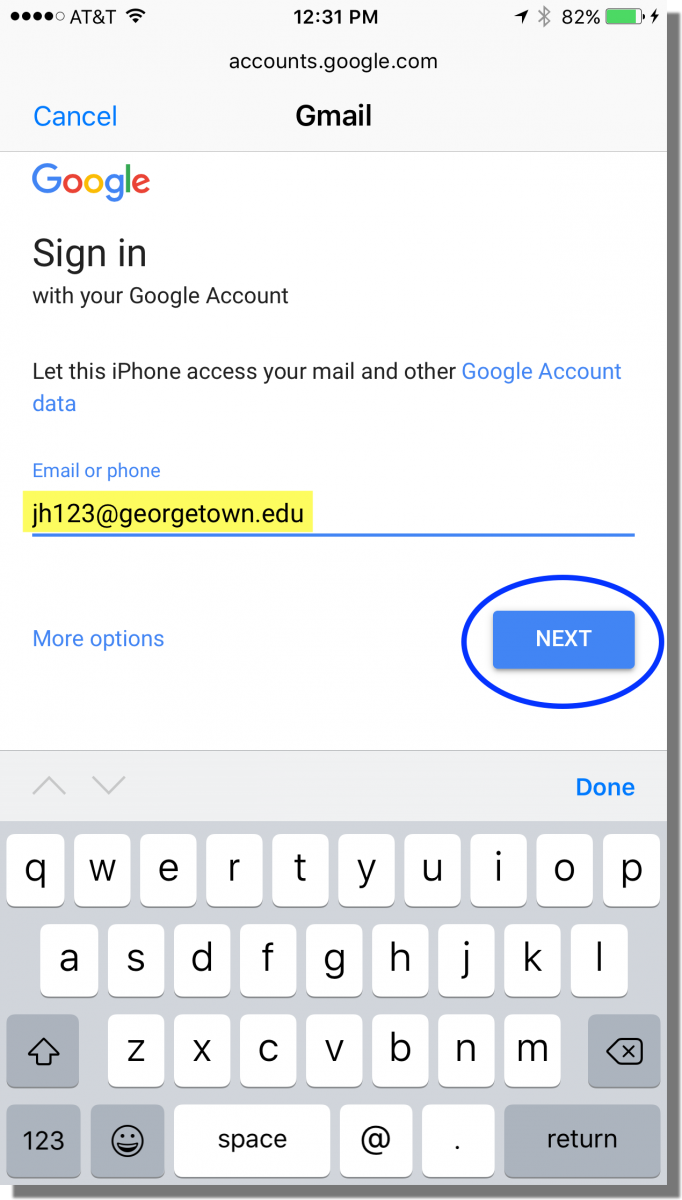
- Enter your NetID@georgetown.edu email address and then tap Next.
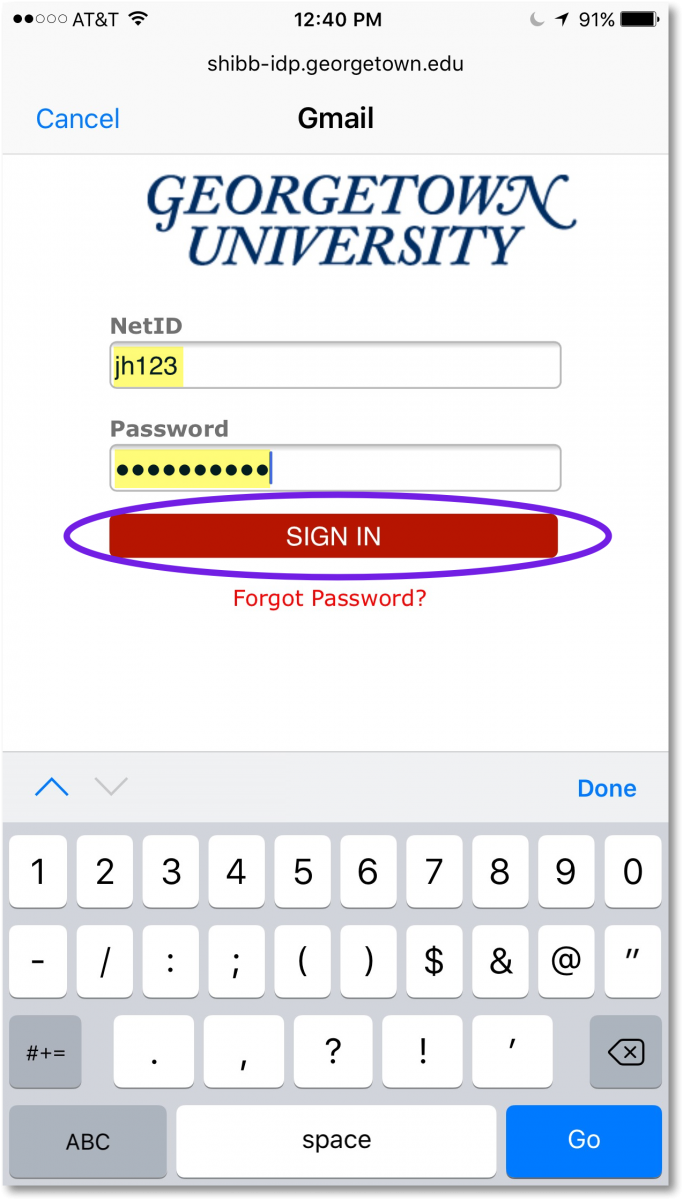
- In the Georgetown login screen, enter your NetID and password and then tap SIGN IN.
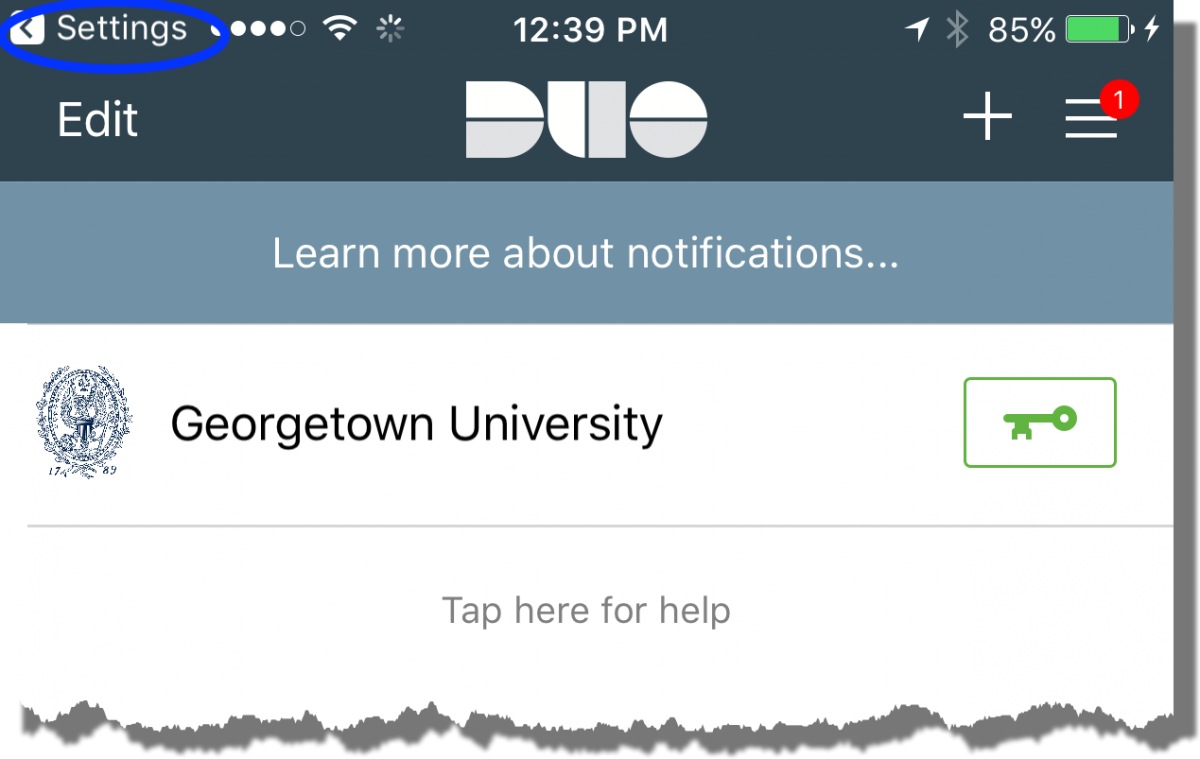
- (If you use Georgetown Duo, you’ll be prompted to accept the authentication request. Once you authenticate, tap “Settings” at the top left hand corner of the screen.)
- In the next screen, move the slider next to Calendars to sync your device with your Google Calendar. Tap Keep on My iPhone in the pop-up message to keep your local calendar.
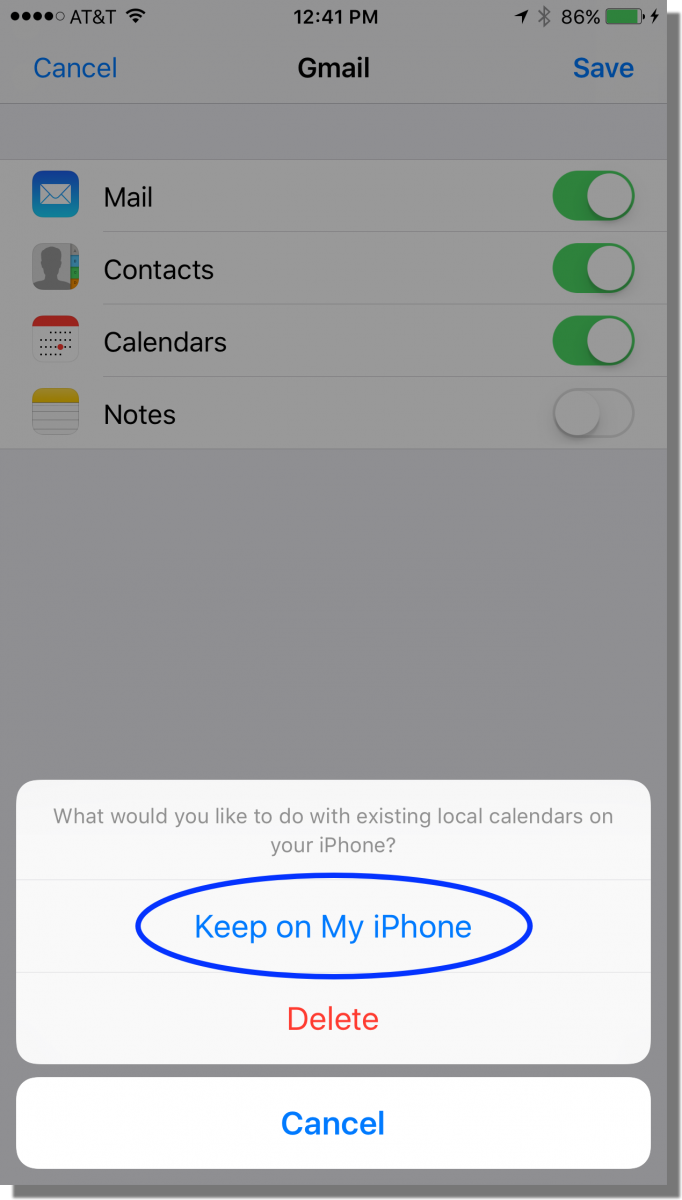
- Tap Save.
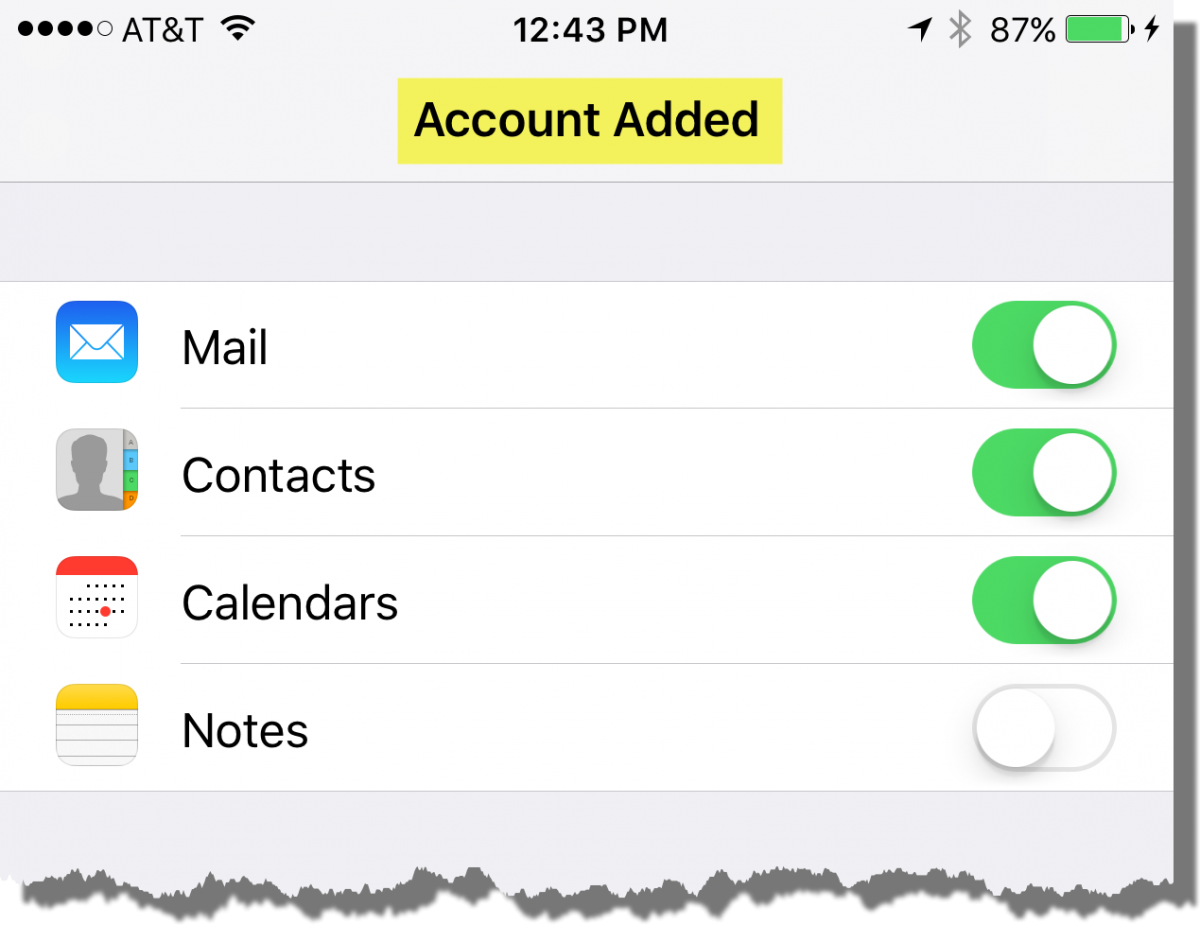
The Google account is added.