Connecting to the GlobalProtect VPN (Windows)
Before You Can Connect
Before you can connect to the GlobalProtect VPN, make sure of the following:
- If you will be connecting to the GlobalProtect VPN from on campus, you must be connected to the SaxaNet WiFi network.
- You must be authorized to use the VPN. (Only faculty and staff approved to access the VPN are authorized to use it.)
- You’ve previously installed the GlobalProtect VPN client.
Connecting to the GlobalProtect VPN
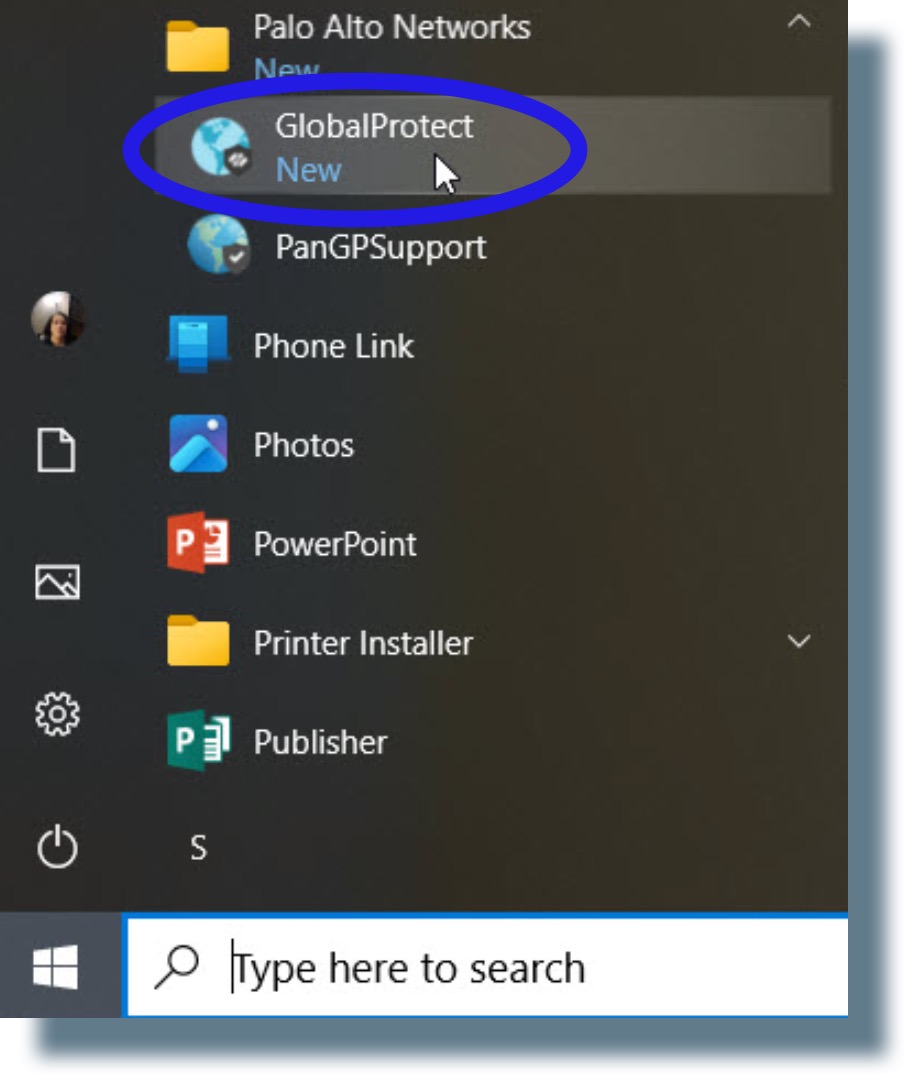
- Open the GlobalProtect VPN by clicking on the Windows Start menu and then selecting GlobalProtect from the application listing.
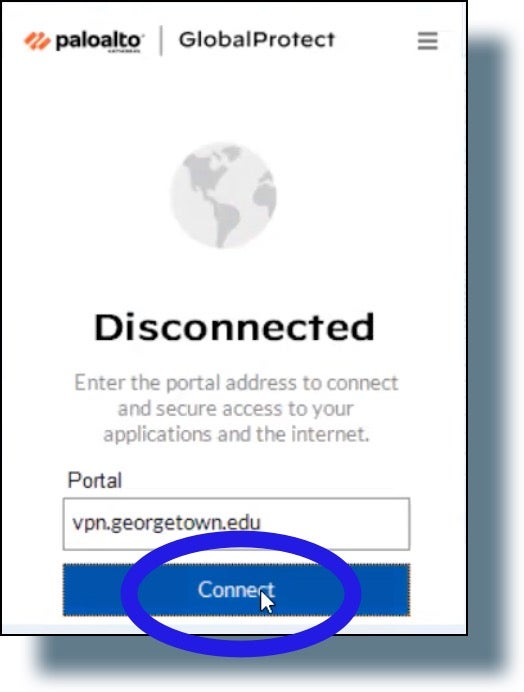
- Click Connect in the pop-up window.
You should see the following message: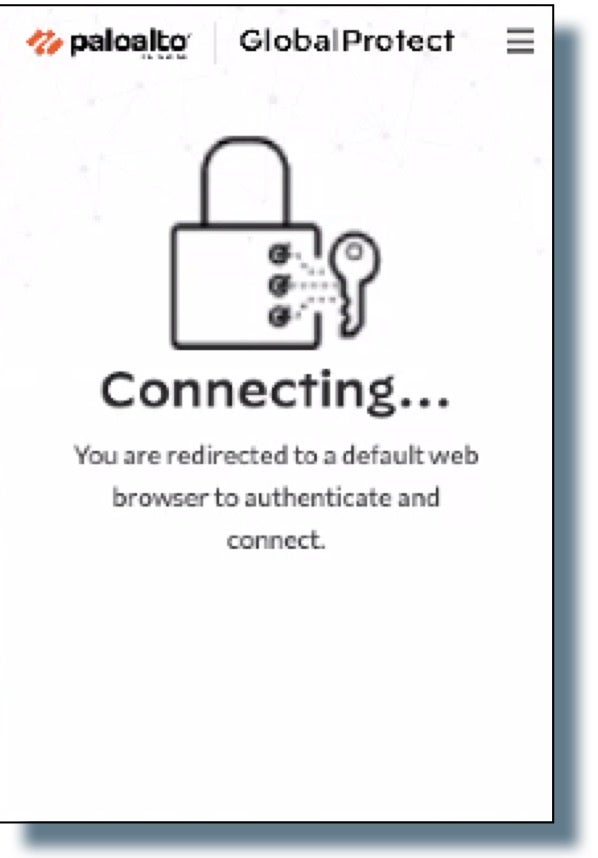
- At the Georgetown login prompt, enter your NetID and password, and then click Sign in.
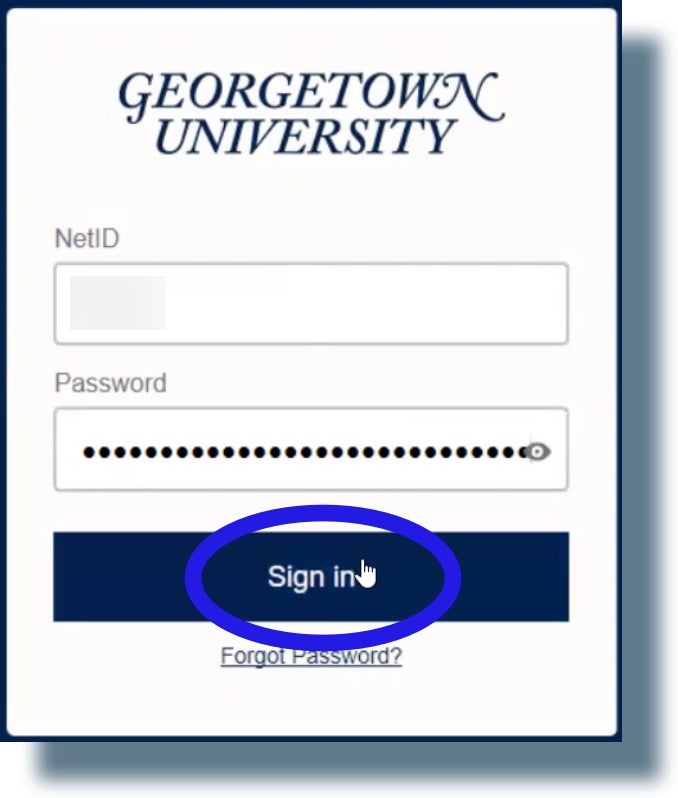
You should see the following screen displayed showing a six-digit verification code. (Note: The code is greyed out for security purposes.)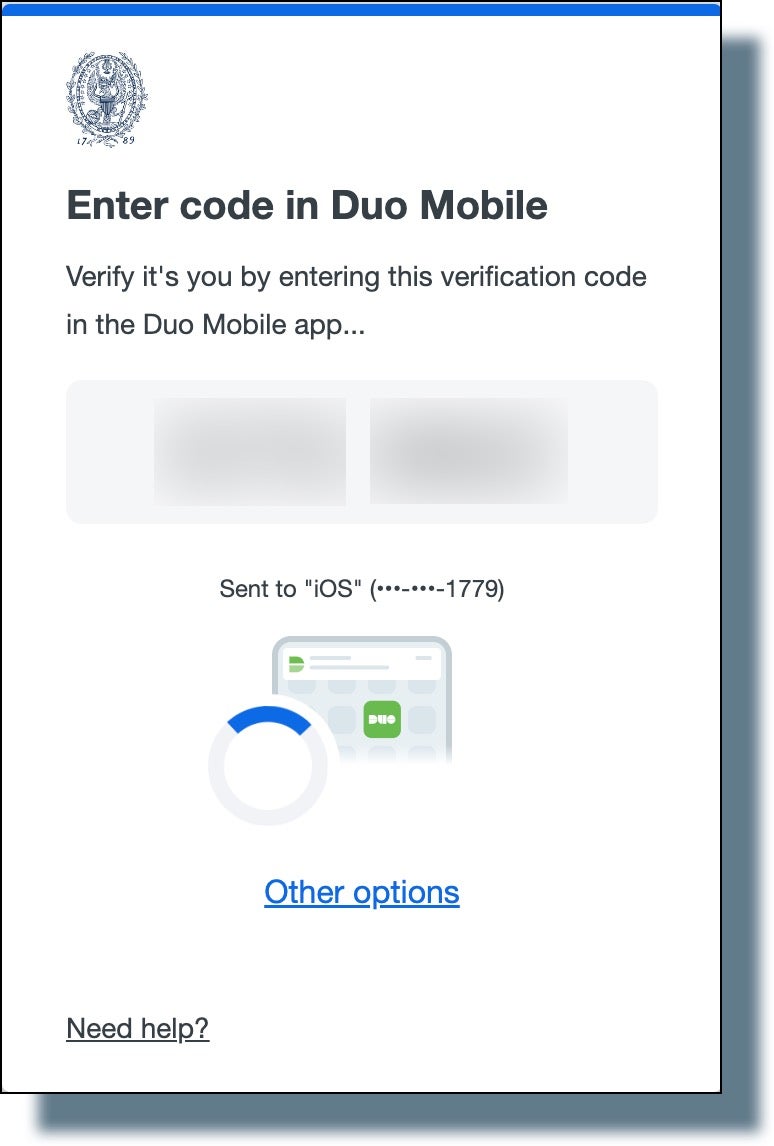
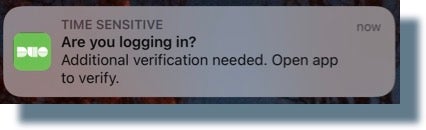
- Tap or swipe the Duo notification banner that appears on your mobile device.
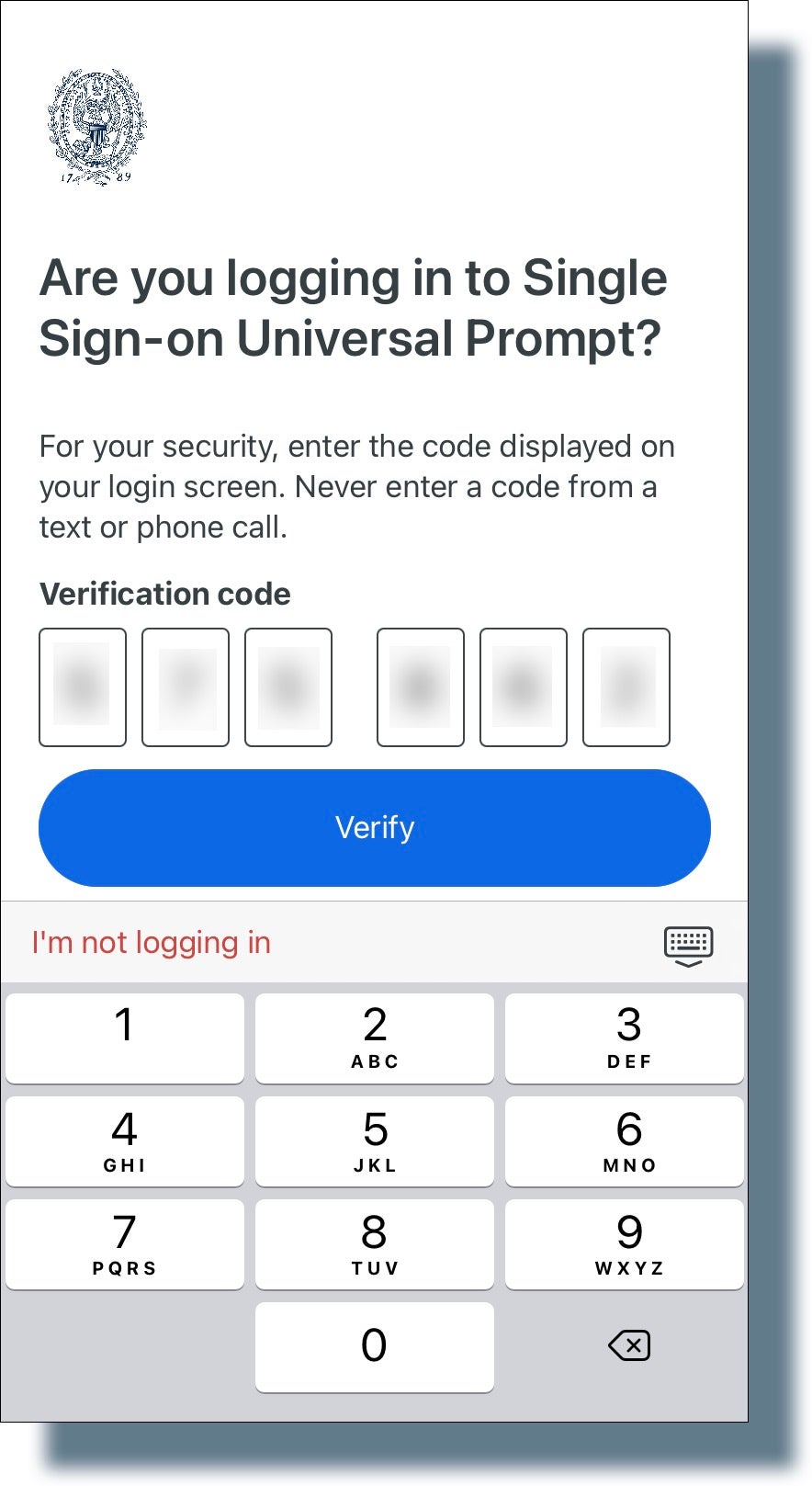
- From the following screen on your mobile device, enter the six-digit verification code and then tap Verify.
- If you see the following pop-up window, click Open GlobalProtect.
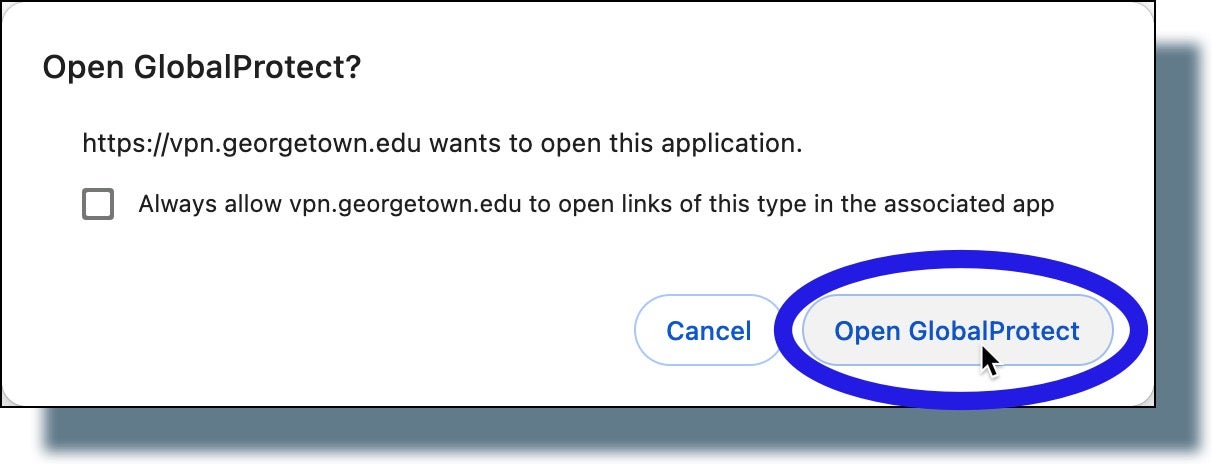
You’ll also see the following “Authentication Complete” message page: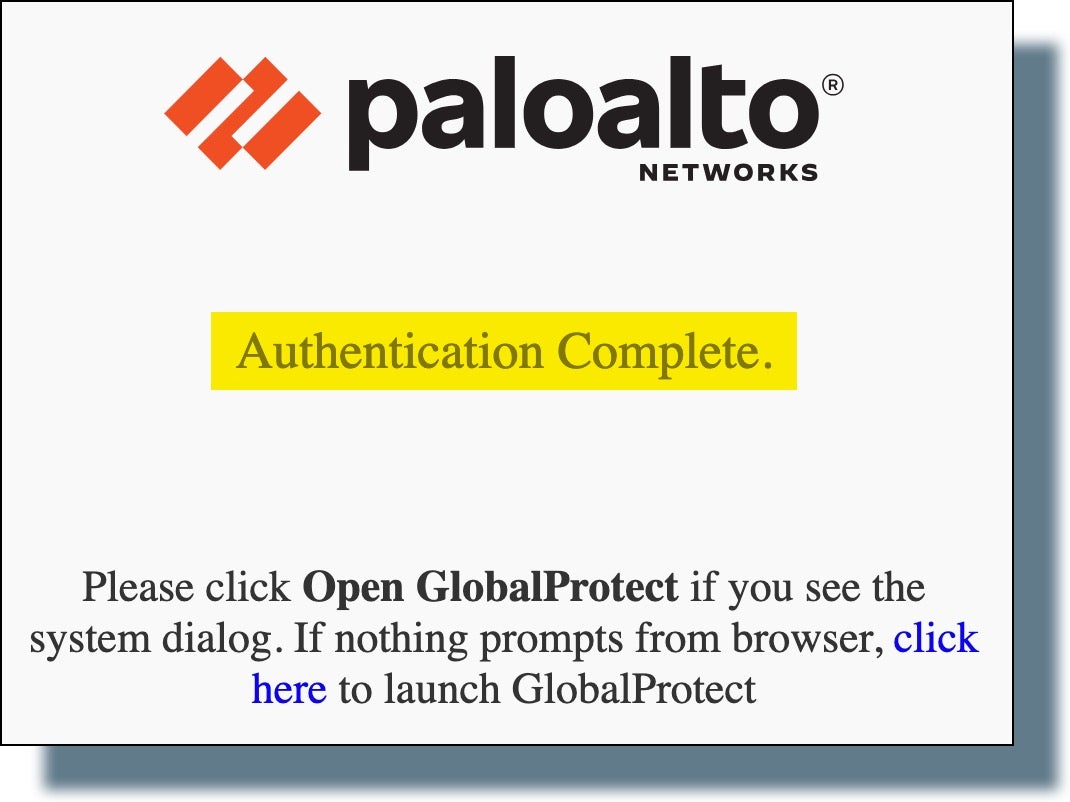
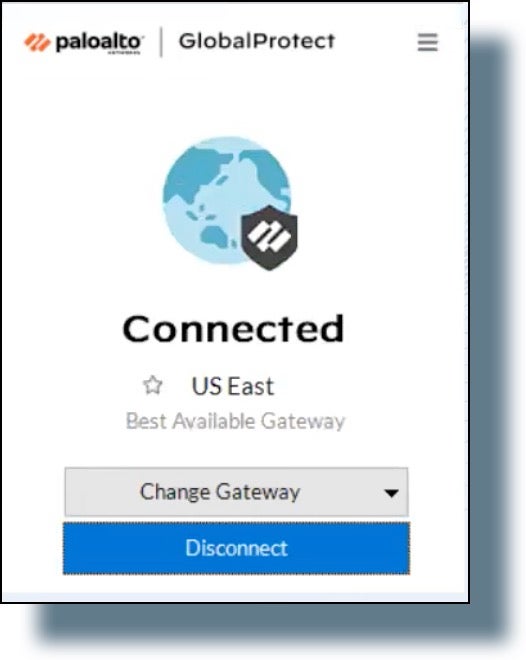
You should then see the following confirmation message that you’re connected to the VPN.