Connecting to the GlobalProtect VPN (iOS)
- Tap on the GlobalProtect icon.
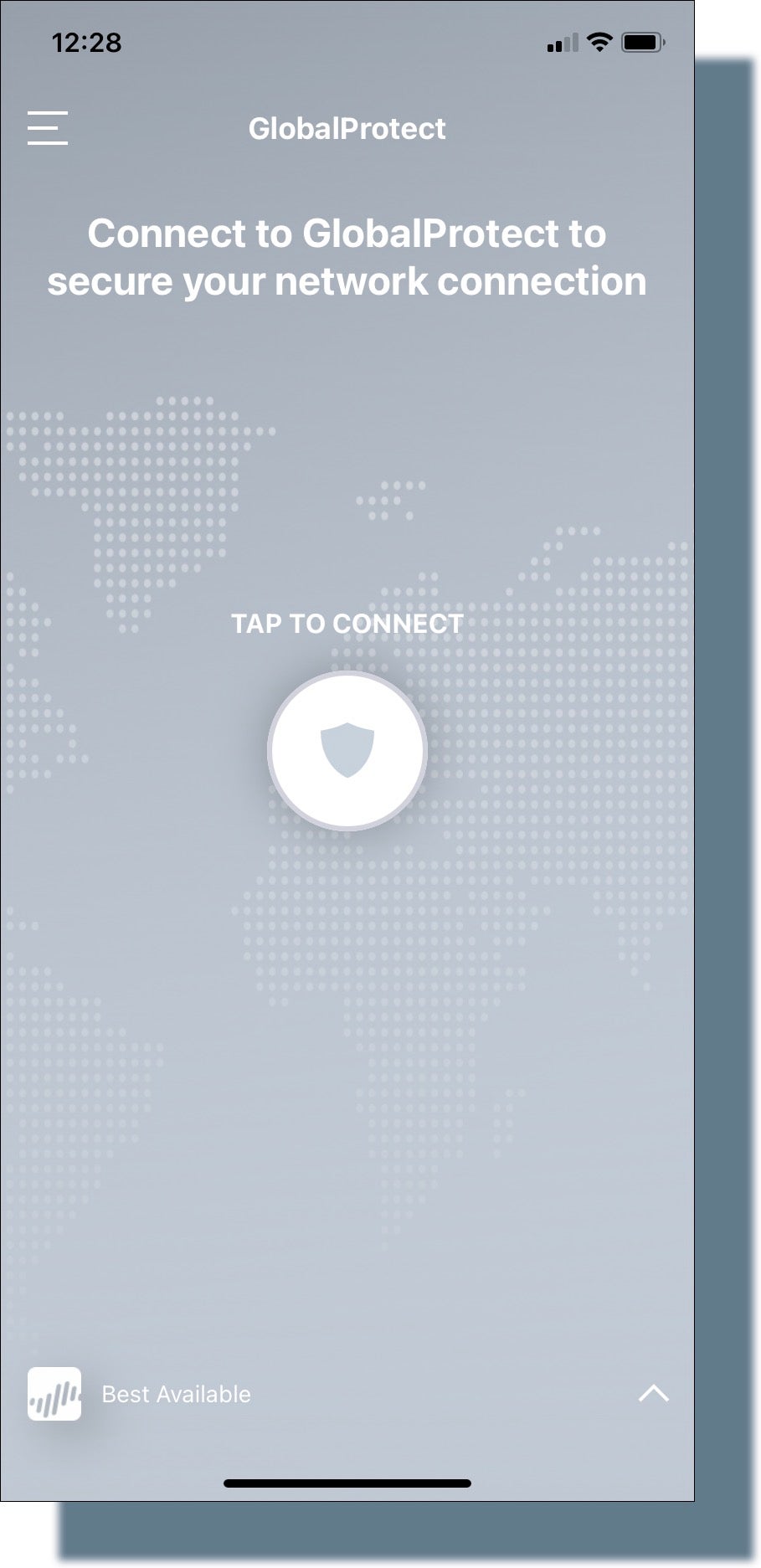
- Tap on the shield icon below TAP TO CONNECT.
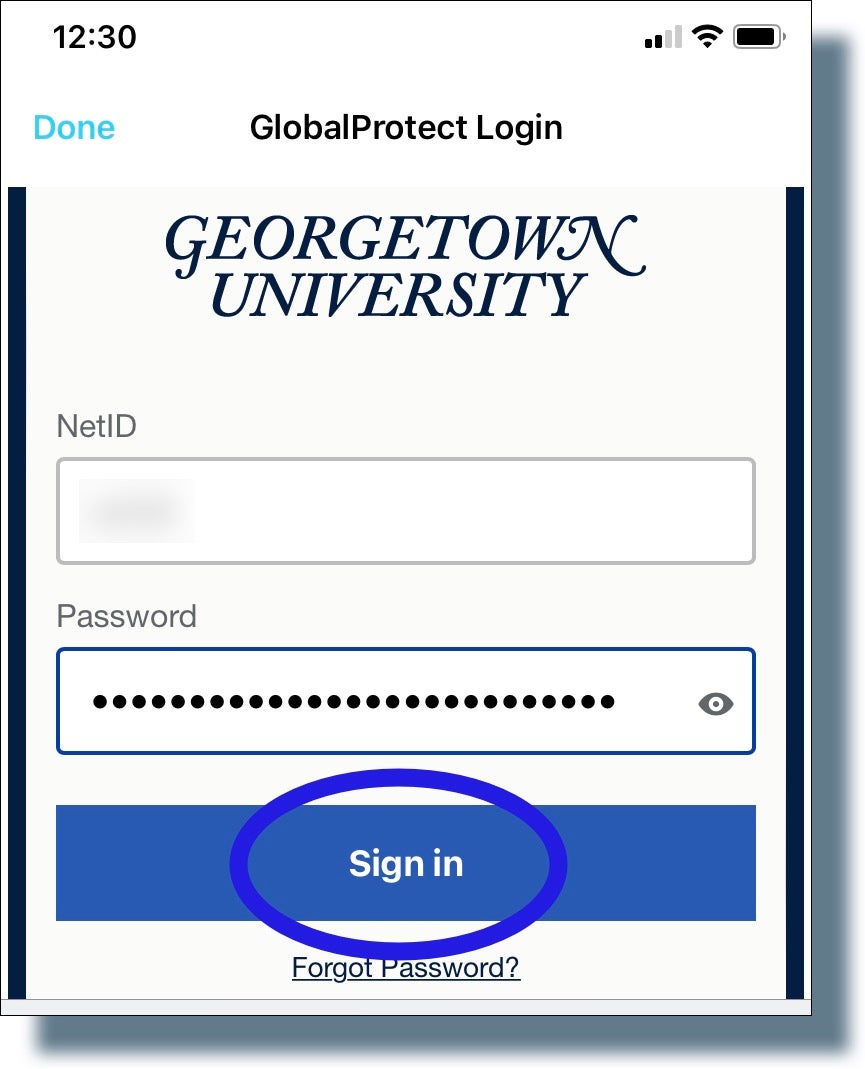
- At the Georgetown login prompt, enter your NetID and password, and then tap Sign in.
You should see the following screen showing a six-digit verification code. (Note: The code has been greyed out for security purposes.)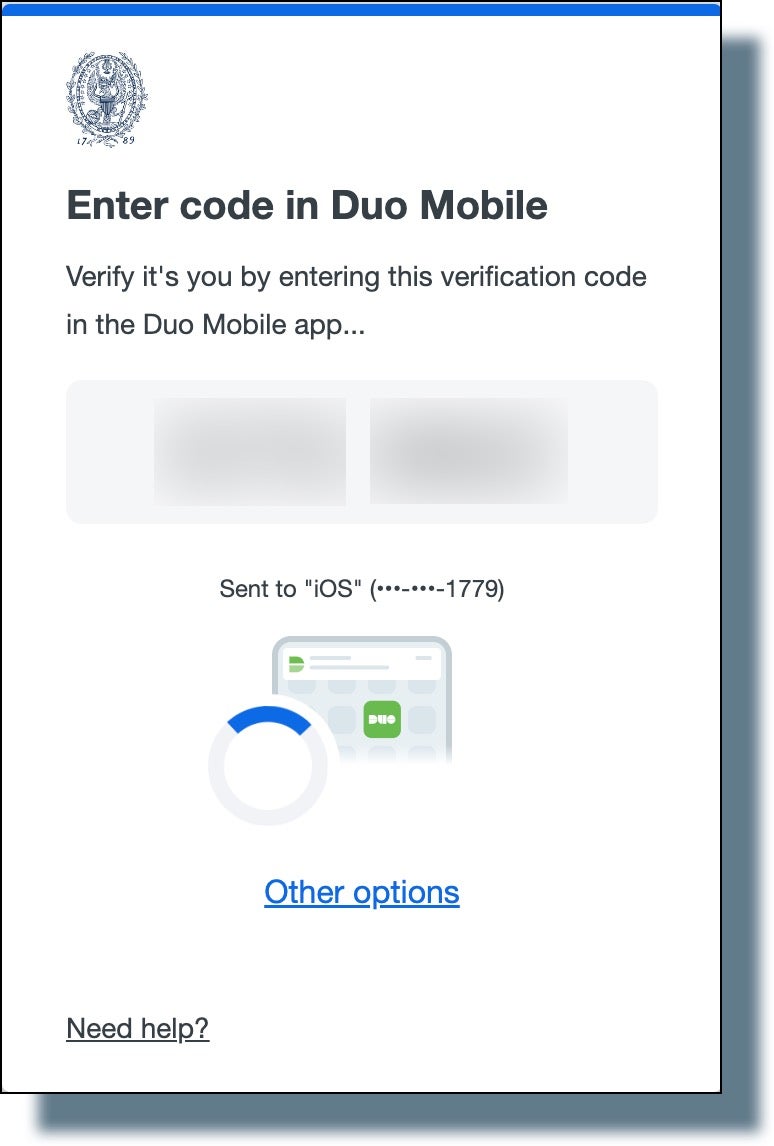
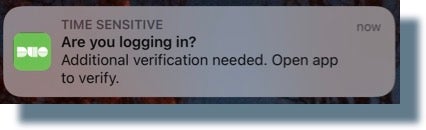
- Tap or swipe the Duo notification banner that appears on your mobile device.
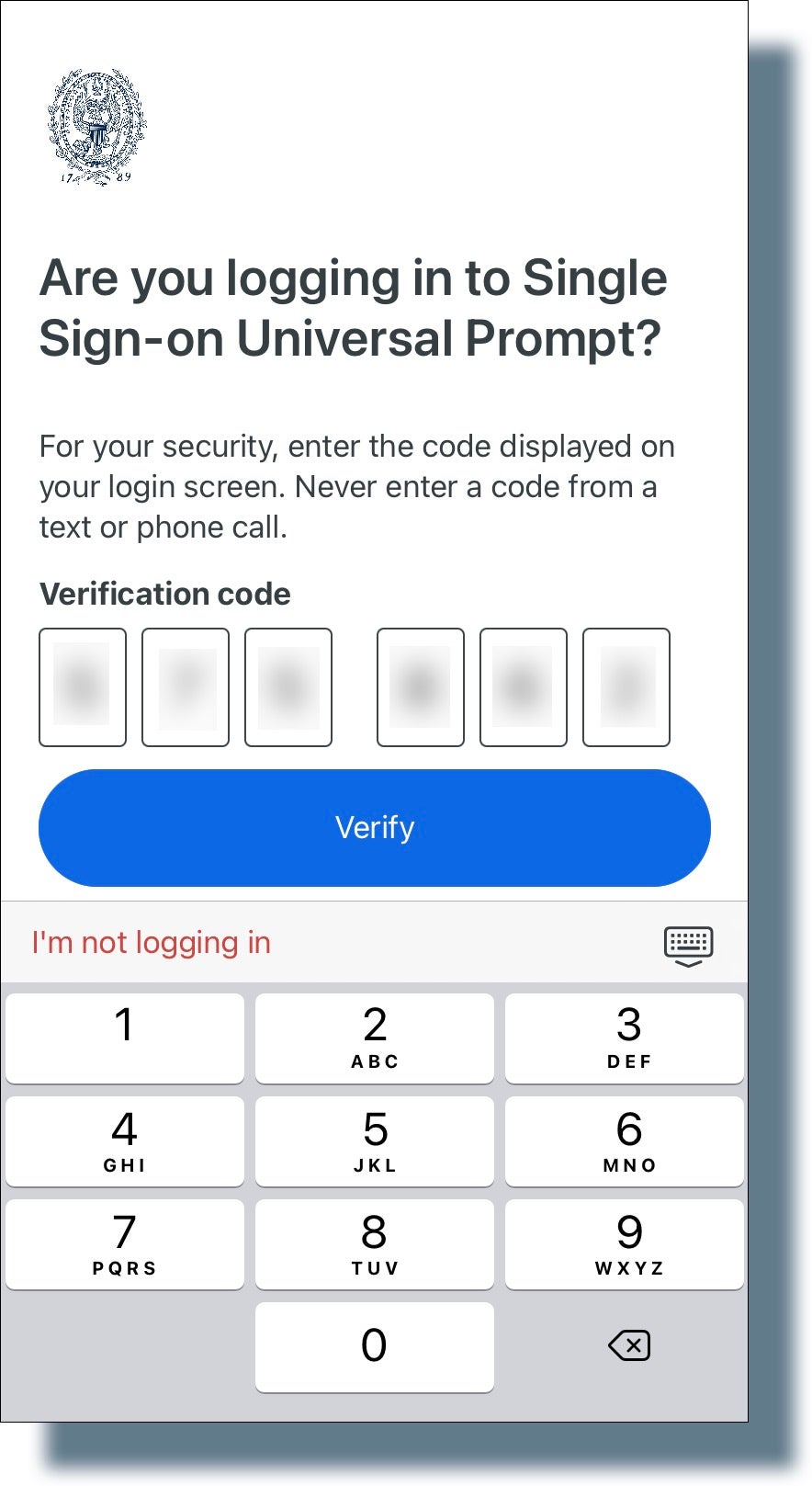
- From the following screen on your mobile device, enter the six-digit verification code and then tap Verify.
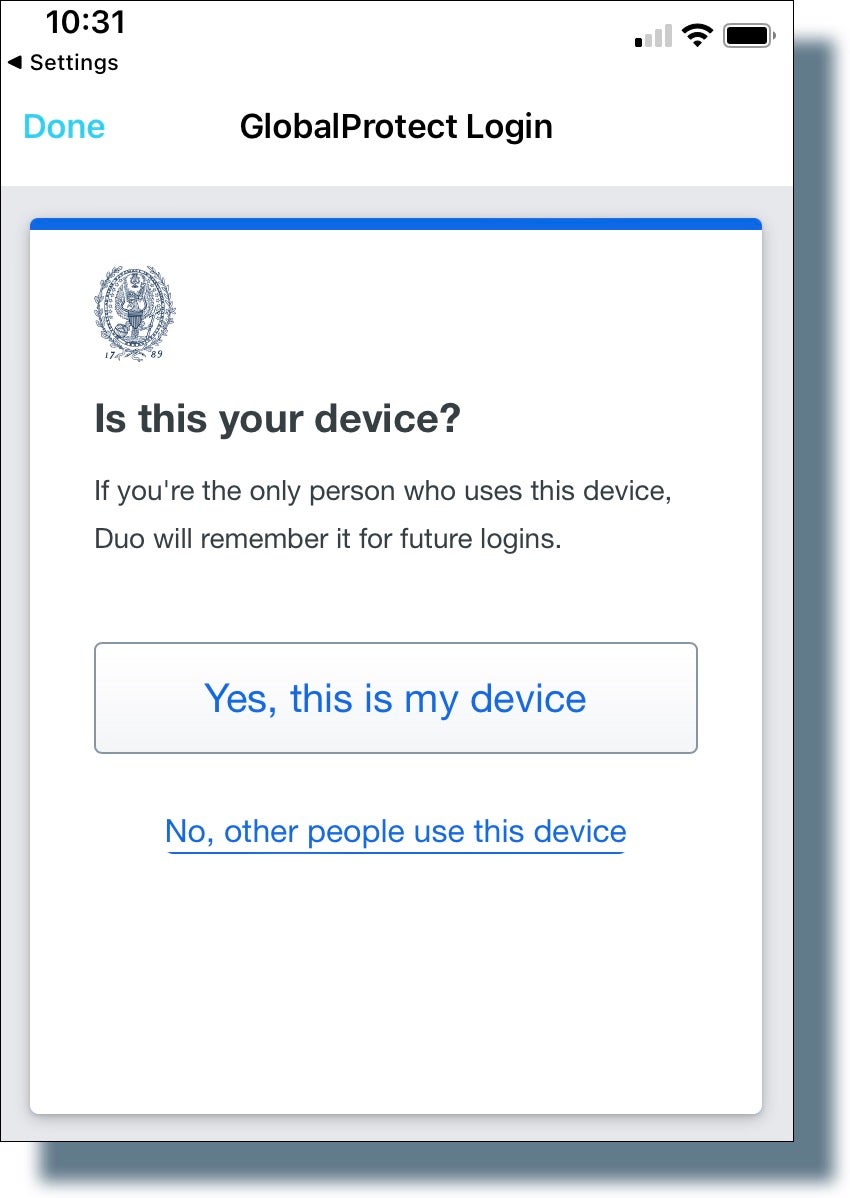
- In the next screen, select one of the options displayed below, depending on whether your device is shared.
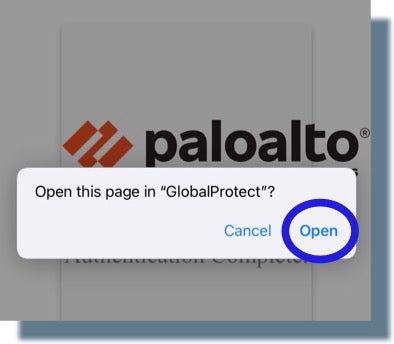
- If you see the following screen, click Open.
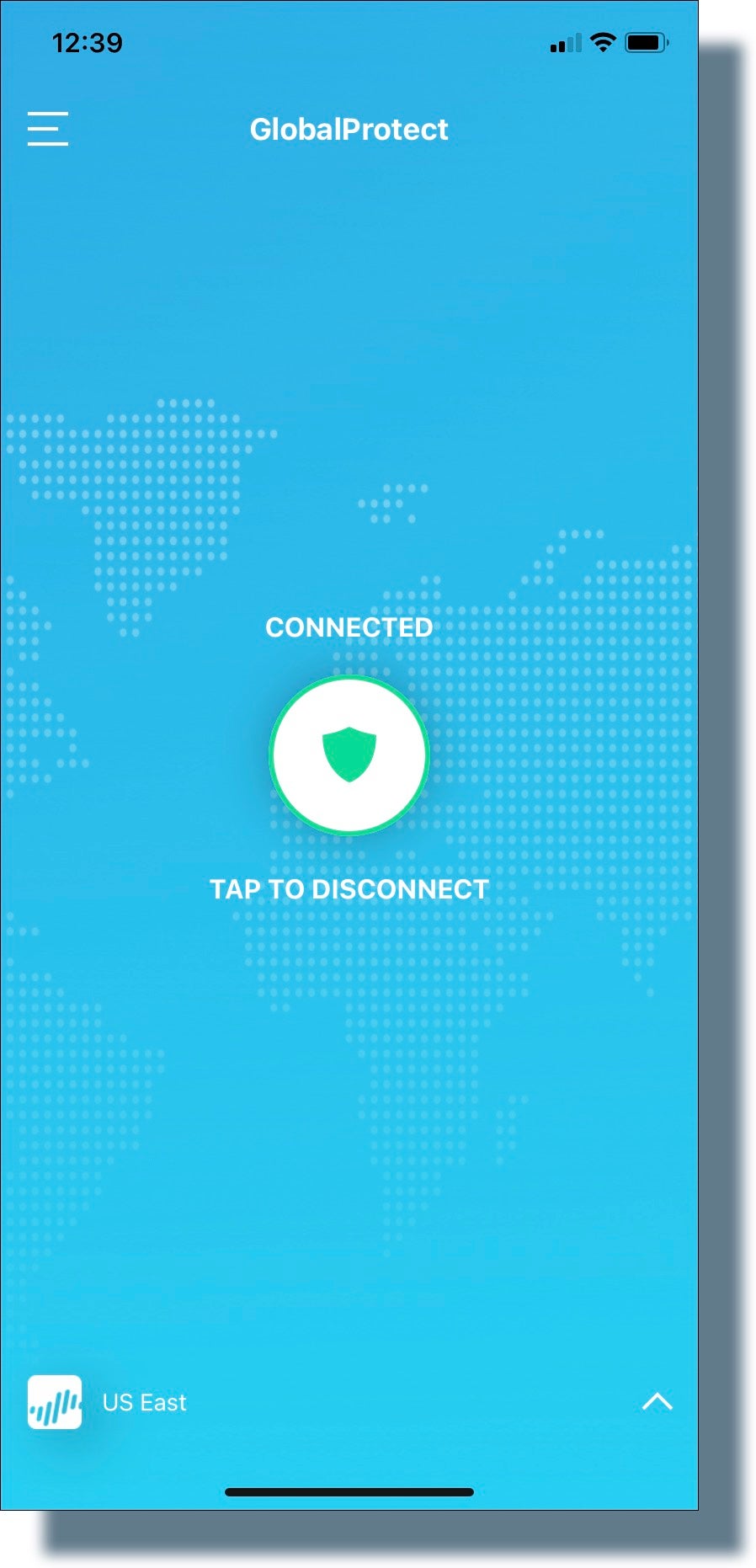
You should see the following screen indicating that you’re now connected to the GlobalProtect VPN.