Enhanced Email Security

Georgetown University is launching an enhancement to email security tool designed to reduce inbox clutter and protect our community from digital threats. This system uses advanced filtering to handle two main types of content:

  1. Malicious Threats: Sophisticated protection that silently removes phishing and malware before they reach you.
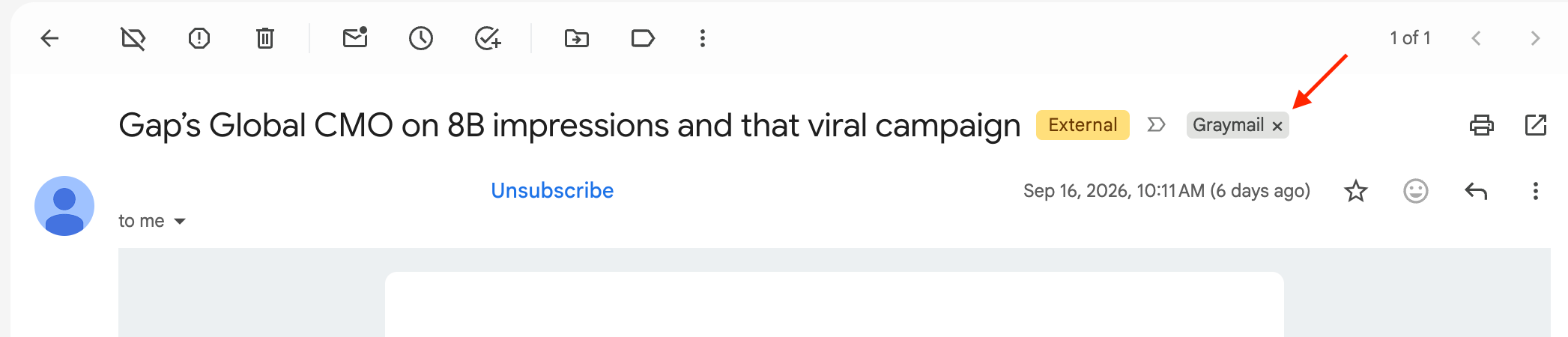
  2. Graymail: A productivity tool that identifies newsletters and promotions, moving them to a dedicated space so you can focus on what matters.

Benefits

Silent ProtectionMalicious threats are detected and removed silently in the background, keeping your email safe without requiring any effort on your part.
Streamlined InboxManage all your email directly within Gmail, with a clutter-free main view strictly reserved for important University business.
Adaptive ProductivitySmart filters learn your specific habits over time, cutting down on unwanted mail so you can spend less time managing your inbox and more time working on what matters.

What You Will See

  • The “Graymail” Label: Within 24-48 hours, you will see a new label called “Graymail” in your Gmail folders/labels list.
  • Native Google Reporting Buttons: The standard Google “Report Phishing” and “Report Spam” buttons are now fully active.

How to…

  1. Open Gmail on your desktop or mobile device.
  2. Look for the Graymail label in the left-hand navigation menu (under “Labels”).
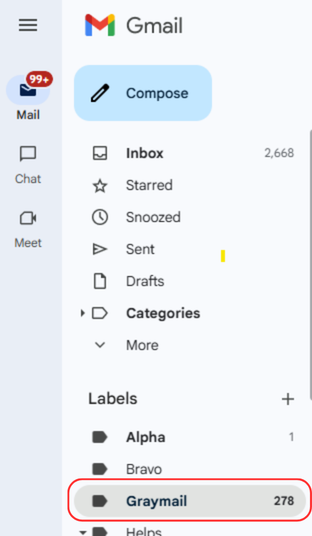
Screenshot of the Gmail interface with the Graymail folder highlighted.
  1. Click the label to view filtered messages.
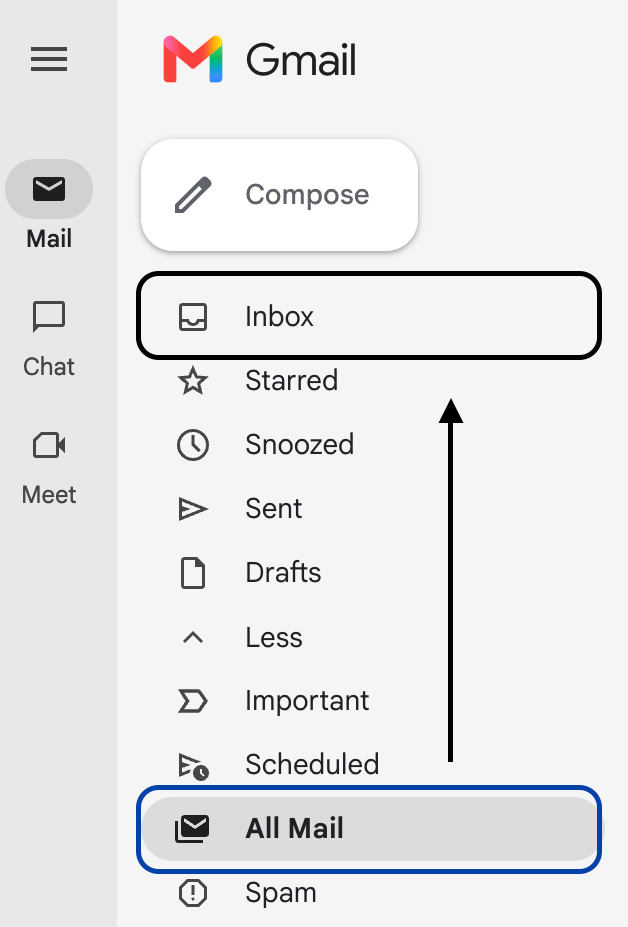
  2. Drag the message from the Graymail folder to the Inbox tab, or right-click and select Move to Inbox. This tells the system you want to see these emails prominently in the future.

If you receive “junk” mail that isn’t a newsletter but is clearly unwanted advertising or bulk mail:

  1. Select the email in your Inbox or Graymail folder.
  2. Click the Report Spam icon (the stop sign with an exclamation point) in the top toolbar.
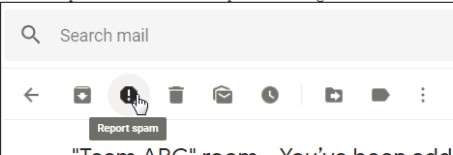
Report Spam icon in Gmail.
  1. The message will be moved to your Spam folder and deleted after 30 days.

Phishing is a fraudulent attempt to get you to share sensitive information like passwords or credit card numbers.

  1. Open the suspicious message.
  2. Click the More icon (three vertical dots) next to the “Reply” button.
  3. Select Report phishing. (Note: You can also report SPAM here)

For every reported message, you will receive a clear explanation of the outcome and actions taken.  

Frequently Asked Questions (FAQs)

While Google Workspace provides strong native defense against traditional, signature-based threats like standard malware and known bad links, organizations require an advanced, behavioral-based security platform to stop sophisticated, modern attacks.

These supplementary systems analyze communication context and establish behavioral baselines to detect payload-free scams and compromised trusted accounts that easily bypass standard authentication filters.

Furthermore, by integrating directly via API, this added layer protects against internal lateral attacks between employees and automatically organizes bulk marketing messages under a dedicated Graymail label, offering comprehensive protection and inbox management that standard tools cannot achieve alone.

Unlike SPAM (which is unsolicited and often malicious), Graymail consists of legitimate emails that you may have signed up for but don’t need to see immediately.

  • Examples: Newsletters, retail promotions, and marketing updates.
  • The Problem: These messages clutter your inbox, making it harder to find urgent business or academic communications.

**Note: Companies that we do business with may also send graymail, like Zoom or Canvas.

It is an advanced, behavioral-based email security platform. It integrates with Google Workspace to detect and remove email-based threats such as phishing, malware, and business email compromise. It learns the normal communication behavior of everyone in your organization, allowing it to detect anomalies and block sophisticated attacks before they reach your inbox.

No. While the system scans messages for threats, it does not store, persist, or retain the contents or attachments of emails that its detection models identify as non-malicious. Only the content and attachments of emails identified as malicious are subject to further processing.

You should report it using the standard methods provided by GMAIL (e.g., clicking “Report as Phishing” in Gmail). Because the security tool integrates directly with GMAIL native features, reporting the message helps improve protection and trains the system for the future.

This is normal behavior. The system processes messages in a secure environment after they are delivered. If it determines a message is malicious, it removes it automatically. If you happen to be watching your inbox closely, you might see a message briefly arrive and then disappear milliseconds later.

On rare occasions, legitimate emails may be flagged by the system. First, check your spam folder, as well as the “Graymail” folder under Labels. If you still cannot find it, contact help@georgetown.edu with the sender’s email address, subject line, and approximate date/time sent so they can investigate.

Graymail is automatically filtered into a special folder to keep your primary inbox clean and focused on important communications.

Screenshot of the Gmail interface with the Graymail folder highlighted.

You can actively train your inbox by moving messages:

  • If an email  goes to Graymail: Move the message from the Graymail folder back to your Inbox. This tells the system it is not graymail and should be delivered normally in the future.
  • If graymail ends up in your Inbox: Move the message from your Inbox into the Graymail folder. This teaches the system to recognize these messages as graymail going forward.

Training occurs continuously as you move messages, and improvements usually take effect within a few hours to a few days.

Unfortunately, no.

  1. Enterprise-Wide Threat Protection: Email security is enforced at the organization level to safeguard the entire university against phishing, ransomware, malware, and data breaches. Allowing individual users to opt out would create security blind spots, leaving those mailboxes and the broader network vulnerable to attack.
  2. Centralized System Integration: The security platform operates via a centralized API integration directly within our cloud email environment. Because it runs at the domain level rather than as a user-installed app or extension, settings are managed universally by University Security teams.
  3. Prevention of Internal (Lateral) Attacks: Cyberattacks often involve compromised internal accounts sending malicious messages to co-workers. Uniform security coverage ensures that incoming and internal messages are consistently scanned to stop threats from spreading laterally across the organization.
  4. Regulatory Compliance & Governance: Organizations are required to adhere to industry security standards, legal regulations, and corporate governance policies. Maintaining consistent threat detection and message protection across all mailboxes is essential for meeting these compliance obligations.

Note on User Control: While individual opt-outs are not permitted, users retain direct control over how non-malicious messages are organized. Moving emails between your Inbox and Graymail folder continuously tunes the system to respect your personal email preferences.

Need additional support?

Contact the UIS helpdesk at help@georgetown.edu.